Calculator InchPro Decimal: Full Guide to Converting Measurement Units
Freeware Calculator Program InchPro Decimal 1.0.0
The InchPro Decimal 1.0.0 standalone desktop application is available for both Windows and Linux (Ubuntu/Debian) operating systems. For each platform, we provide a detailed installation guide and practical usage examples below.
Installing on Linux (Ubuntu / Debian Desktop)
Navigate to our official download page, find the package corresponding to your Linux architecture, and download it to your computer.
For 64-bit systems, downloading the application provides the standalone inchpro-decimal_1.0.0_amd64.deb installer package. By default, web browsers save downloaded packages into your local ~/Downloads directory. To execute the installation, open your system terminal, navigate to the folder, and run the package manager using the following commands:
cd ~/Downloads
sudo dpkg -i inchpro-decimal_1.0.0_amd64.deb
Note: If your system uses a customized download path, please modify the initial command to point to your specific folder (e.g., cd ~/your_custom_path).
Once the package setup finishes, you can locate and launch the desktop converter via your system application menu under: Applications > Accessories > InchPro Decimal.
Upon initialization, the default, ready-to-use converter interface will display inside your Linux workspace:
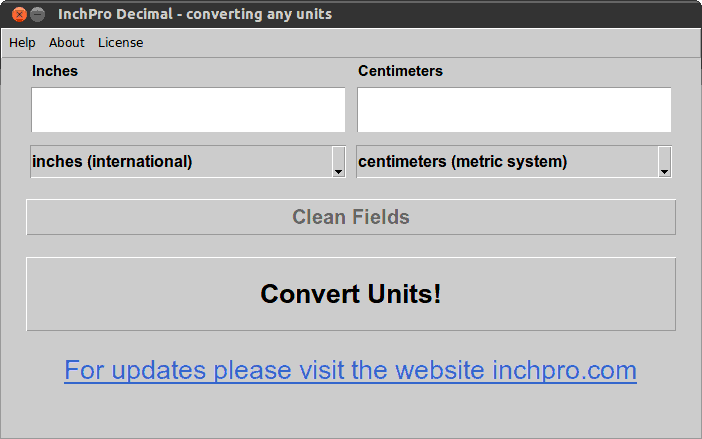
Pic.1: The user interface layout of the InchPro Decimal 1.0.0 software upon startup on Ubuntu Linux.
For additional technical details regarding software installations on Debian-based platforms, please consult the official AskUbuntu deployment guide.
Installing on Windows (Windows XP through Windows 11)
Go to our download page and select the executable link for Windows. This downloads the dedicated setup package: inchpro-decimal_1.0.0_windows_setup.exe.
To configure the software, double-click the downloaded setup file to initiate the automatic installation wizard. The installation workflow manages all directory allocations automatically. You can manually alter the target destination path, desktop shortcut locations, and other parameters inside the wizard layout. We recommend leaving all settings at their default values if you are uncertain about custom path routing.
After starting the program, you will see the stable user interface grid inside your active Windows workspace:
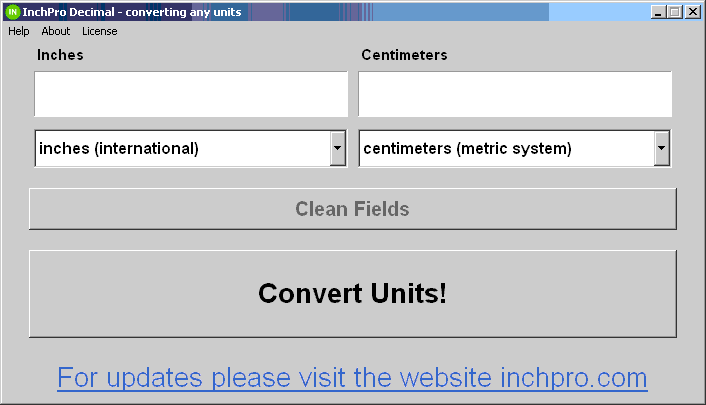
Pic.2: Desktop user interface view of the InchPro Decimal 1.0.0 conversion engine upon initialization on Windows OS.
How to Use the InchPro Decimal Calculator
The InchPro calculator relies on a very straightforward logic. All numerical values for calculation are entered into the left field, while your processed results populate inside the right field. To obtain the correct result, carefully choose your measurement units from the drop-down lists beneath the input and output boxes (in other words - the left and right combo boxes), and then click the "Convert Units!" button.
If you are looking for an immediate onboarding guide, you can visit this link: Quick Start InchPro. For a more comprehensive breakdown, please read through the technical instructions below. The specific function of each button and user interface dialogue component is mapped out in detail.
Interface Buttons and Functional Layout Summary
The interactive layout below outlines all structural menu locations, input fields, and action triggers available within the application window setup:
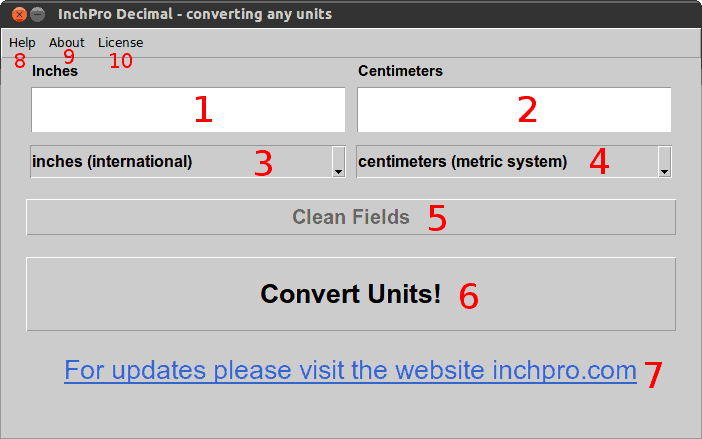
Pic.3: The numbered layout configuration mapping the user interface elements of the InchPro Decimal desktop app.
Each active area on the application dialogue layout corresponds to the following configuration metrics:
- Primary Input Field: Enter numerical values or decimals here (e.g.,
10.75). - Results Output Field: Displays real-time decimal conversion values (e.g.,
100.678). - Source Unit Menu: A drop-down selection containing starting units of length. The options in lists 3 and 4 are fully equivalent.
- Target Unit Menu: A drop-down selection containing final measurement scales. The options in lists 3 and 4 are fully equivalent.
- Clear Fields Button: Resets both input and output fields to a blank state.
- "Convert Units!" Button: Executes the calculation. Input a number in field 1 and press this button to instantly populate the output in box 2.
- Update Notification Link: The text link points directly to the official
inchpro.comchannel to check for new platform updates. - "Help" Menu Link: Links directly to our active online support hub and technical documentation index.
- "About" Dialogue Trigger: Toggles an internal modal window displaying program build metrics, version data, and credits.
- "License" Agreement Window: Opens an auxiliary window containing the official freeware end-user license agreement.
Key Software Features and Input Rules
All fractional inputs must be entered in decimal format. The application utilizes a standard decimal point (.) as the separator (e.g., 2.5, 22.25, or 222.225). Whole integers can be input without a period (e.g., 5 or 10), though formats like 10. or 5. remain valid. The conversion drop-down menus support instant cross-system mapping across five major frameworks:
- Metric System: Kilometer, hectometer, decameter, meter, decimeter, centimeter, millimeter, micrometer (micron), and nanometer.
- US Survey: Survey foot, link, rod (perch, pole), chain, furlong (stade), statute mile, and US survey league.
- International System: Point, pica, standard inch, international foot, yard, and land mile.
- International Nautical: Fathom, cable length, and international nautical mile.
- Astronomical Scales: Astronomical unit (AU), light-second, light-minute, light-hour, light-day, light-year, and parsec.
If you enter an invalid character or an incorrect numeric string in the left input box, the right results field will trigger a built-in validation response displaying: "Error number!". To resolve this, you can manually correct the value in the input field (1) or click the "Clean Fields" button (5) to wipe the slate clean and restart your calculation log.
Step-by-Step Unit Conversion Examples
To demonstrate the basic principles of operation, we have outlined practical conversion scenarios using InchPro Decimal. Each scenario features dedicated UI screenshots, step-by-step instructions, and a video walkthrough demonstrating advanced multi-system mapping.
Example: Converting 5.5 Inches to Centimeters (cm)
Follow these linear steps to process a standard imperial-to-metric calculation:
- Type your target numeric value 5.5 directly into the left input field.
- Open the left drop-down list and select inches (international) as your source unit.
- Open the right drop-down list and choose centimeters (metric system) as your target unit.
- Click the "Convert Units!" action button to trigger the processing logic.
- Review the final calculated value of 13.97 displayed instantly inside the right results field.
- Click the "Clean Fields" control button to clear all inputs for your next calculation.
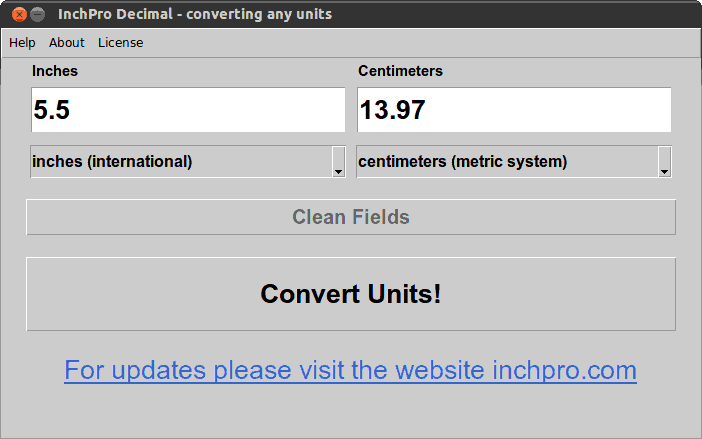
Pic.4: Active calculation interface showing 5.5 inches successfully converted into 13.97 cm using InchPro Decimal.
If you do not have your desktop device at hand, you can perform the exact same computation instantly on our website by visiting our web tool: Convert 5.5 Inches Online.
Example: Converting 1.75 mm to Inches
Follow these steps to process a high-precision metric-to-imperial diagnostic conversion:
- Enter the desired diagnostic value of 1.75 into the left input field.
- Select millimeters (metric system) from the unit drop-down menu on the left.
- Select inches (international) from the unit drop-down menu on the right.
- Click the "Convert Units!" processing button.
- Review the high-precision decimal output of 0.0688976377953 displayed inside the right results field.
- Click the "Clean Fields" button to wipe the workspace logs for your next computation.
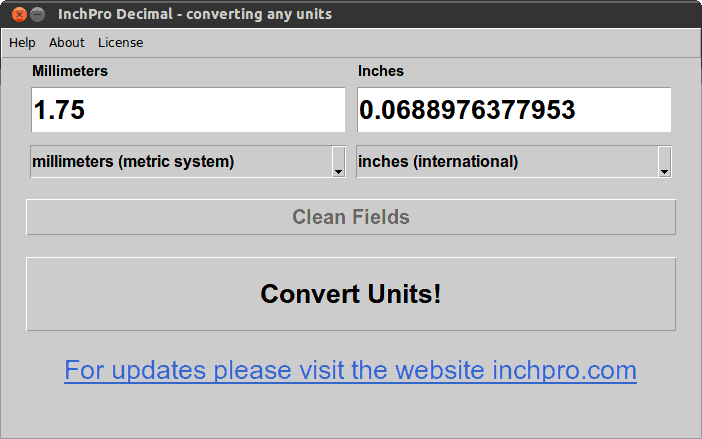
Pic.5: High-precision conversion output showing 1.75 millimeters calculated into international inches within the software grid.
Example: Converting 5 Meters to Feet
Follow these linear steps to execute a standard long-distance linear metric-to-imperial calculation:
- Enter your target integer value of 5 directly into the left input field.
- Select meters (metric system) from the unit drop-down menu on the left.
- Select feet (international) from the unit drop-down menu on the right.
- Click the "Convert Units!" execution button.
- Observe the final processed conversion output of 16.4041994751 inside the right field.
- Click the "Clean Fields" button to wipe the workspace inputs for your next calculation.
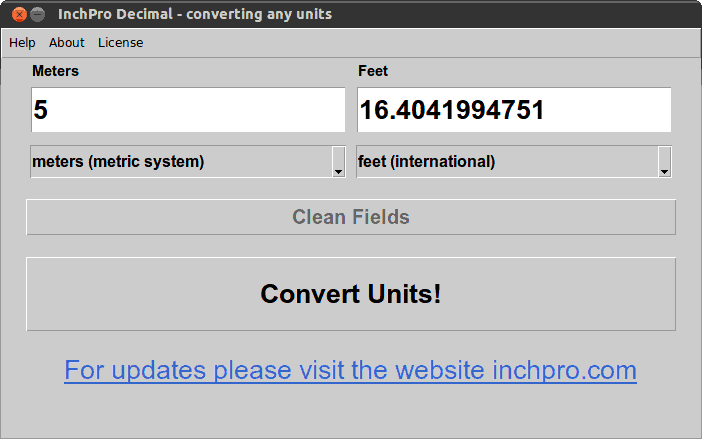
Pic.6: Active software window layout rendering the spatial conversion metrics from 5 meters into international feet.
Video Guide: Offline Multi-System Unit Conversion Walkthrough
This comprehensive video walkthrough combines all three practical examples for a real-time review of the software's operational modes.
Watch the step-by-step diagnostic process as we convert 5.5 inches to centimeters, compute high-precision 1.75 millimeters into international inches, and map a long-distance 5 meters layout directly into feet.
Although this diagnostic runtime is recorded using an Ubuntu Linux desktop environment, the conversion algorithms, interface mapping, and processing mechanics are completely identical across all versions of the Windows OS.
Page last updated: